AI Listens On Your Mac
Press ⇧⌘N. Nextly captures meeting audio on your Mac and transcribes it live with the speech provider you choose.
Nextly AI listens along and assists you in real time, guided by your own prompting, notes and files.
No meeting bot · Hidden from supported screen shares
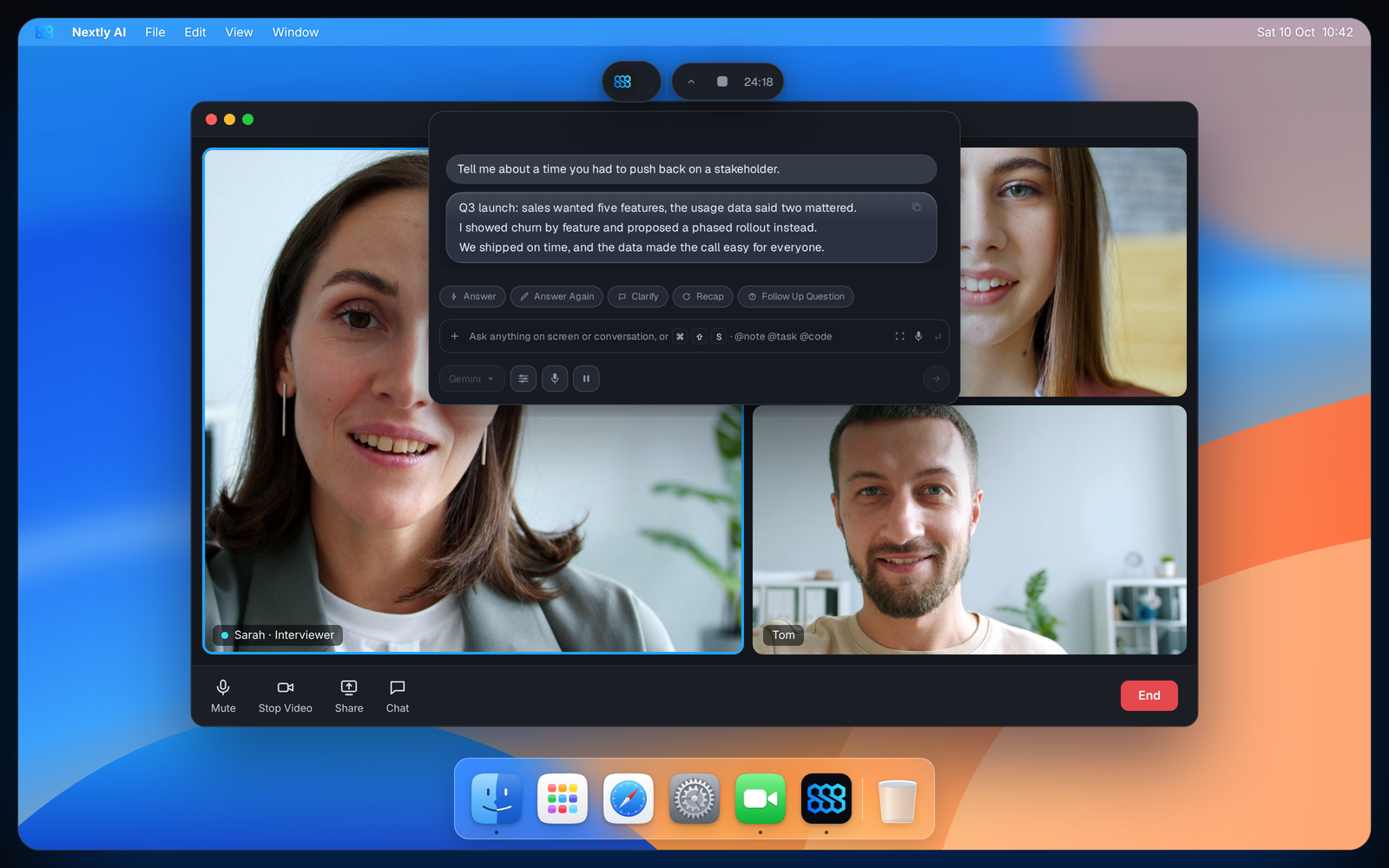
One floating panel, driven entirely from your keyboard.
Press ⇧⌘N. Nextly captures meeting audio on your Mac and transcribes it live with the speech provider you choose.
Nextly combines the conversation so far with your mode’s prompt, notes and reference files.
Press ⌘A for a three-line answer on screen, or hear it privately in your headphones. Clarify, Recap and Follow Up are one keystroke each.
Help that arrives during the call, not in the notes afterwards.
Three lines, not three paragraphs. Copy it, regenerate it, or reword it so it sounds like you.
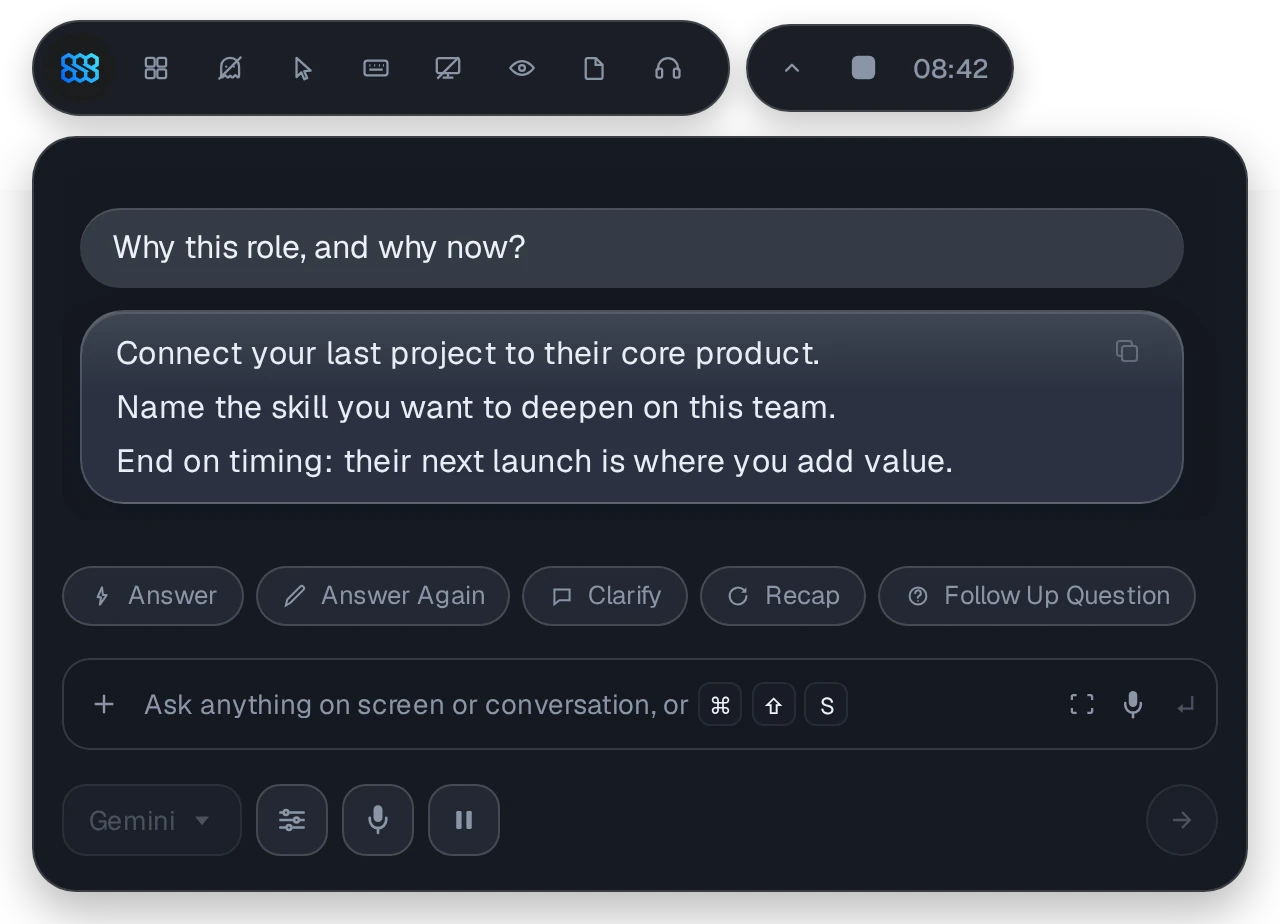
Give it your résumé and the target role. Tune emphasis and length, and pre-approve answers to the questions you expect.
Keep the panel off supported screen shares, hide your pointer, and let the app appear as Terminal or System Settings in the Dock.
Attach files and folders to each mode. Nextly picks text, visual or hybrid retrieval, and the PDF reader suggests the right page as you talk.
Use Gemini, Claude, OpenAI and more, or local models with Ollama. Set an Active model, with a Fallback if it stalls.
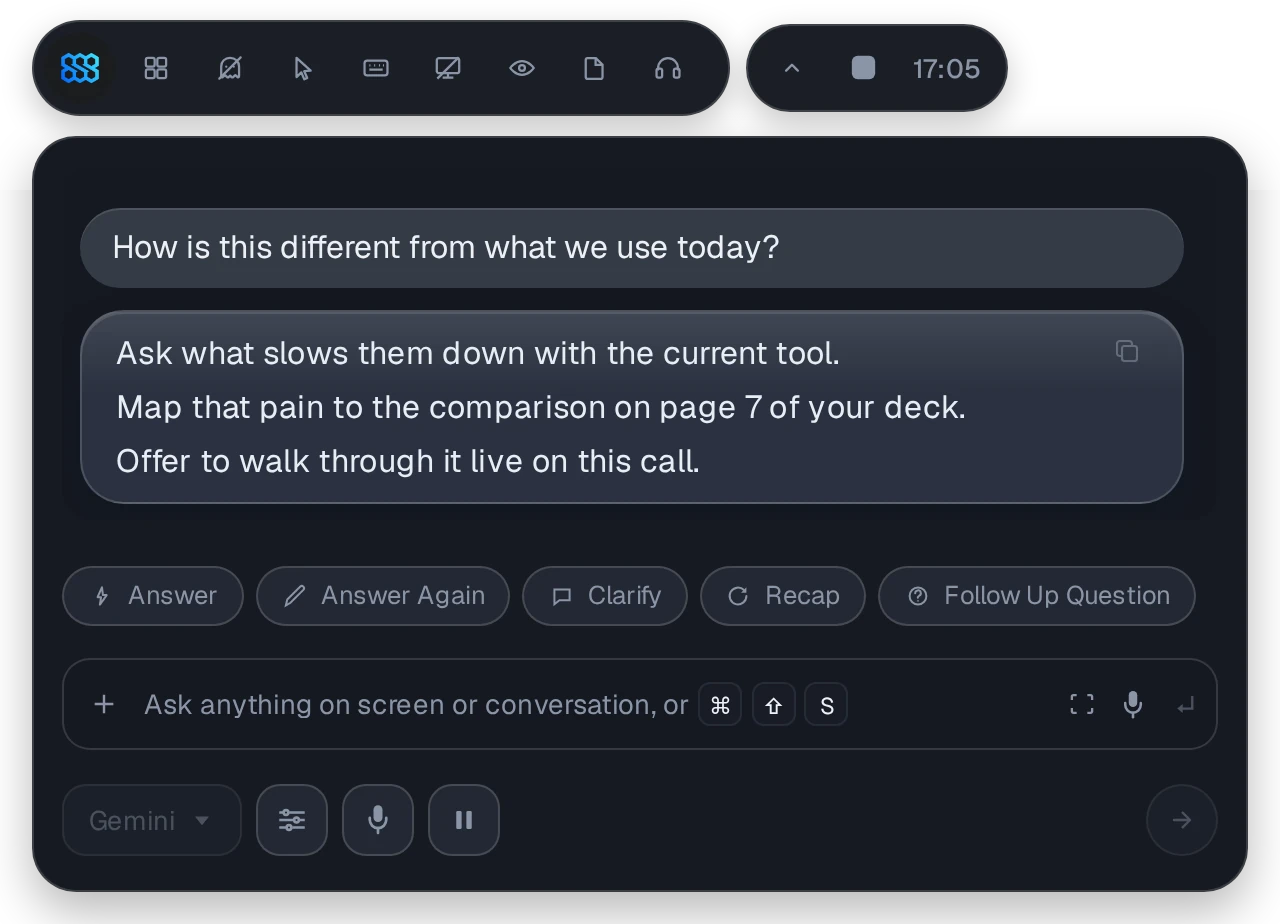
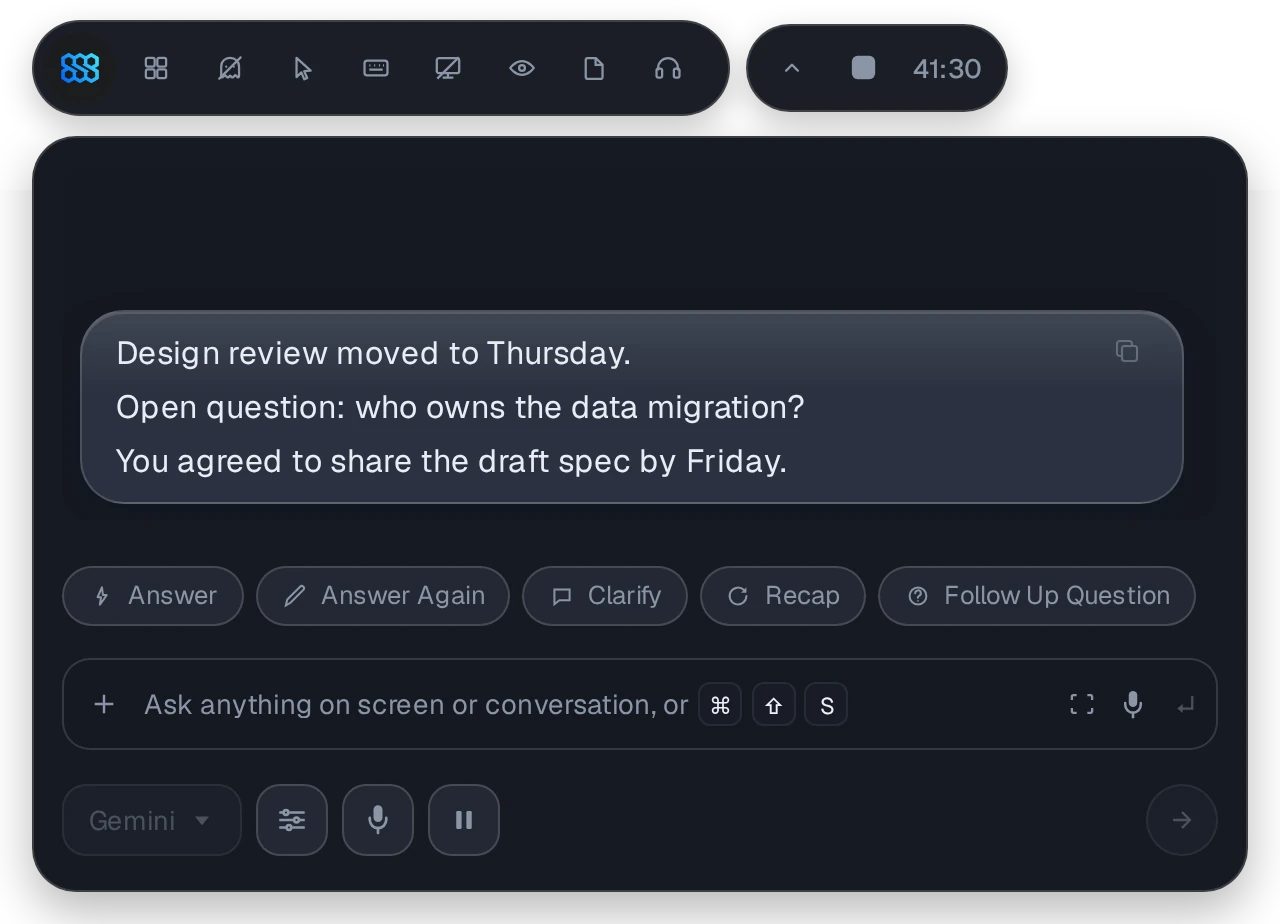
Nextly stays on your screen and off theirs. Stealth features keep it hidden from supported screen-sharing tools, your keys stay in the macOS Keychain, and meeting history is saved encrypted on your Mac, which you can turn off or delete anytime.
Shown with Stealth features on, in supported screen-sharing and capture tools. Always test your setup before an important call.
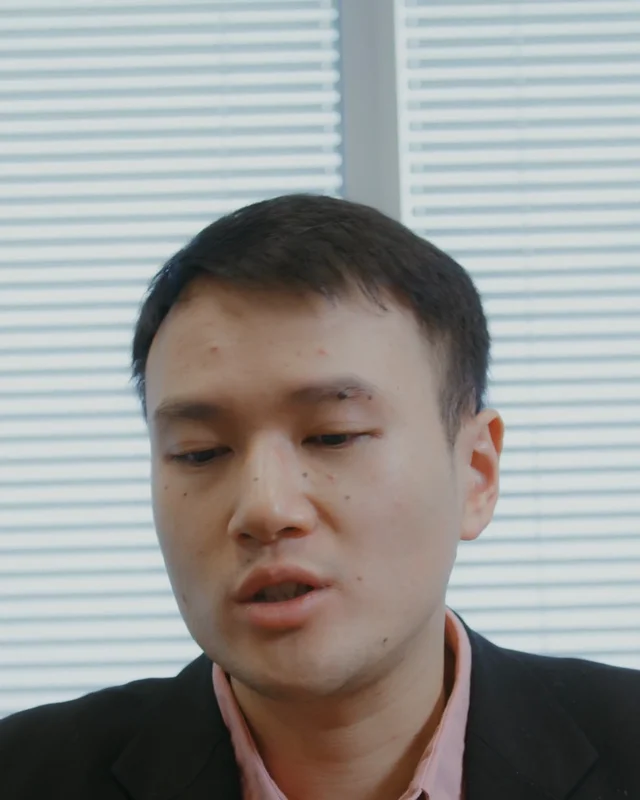
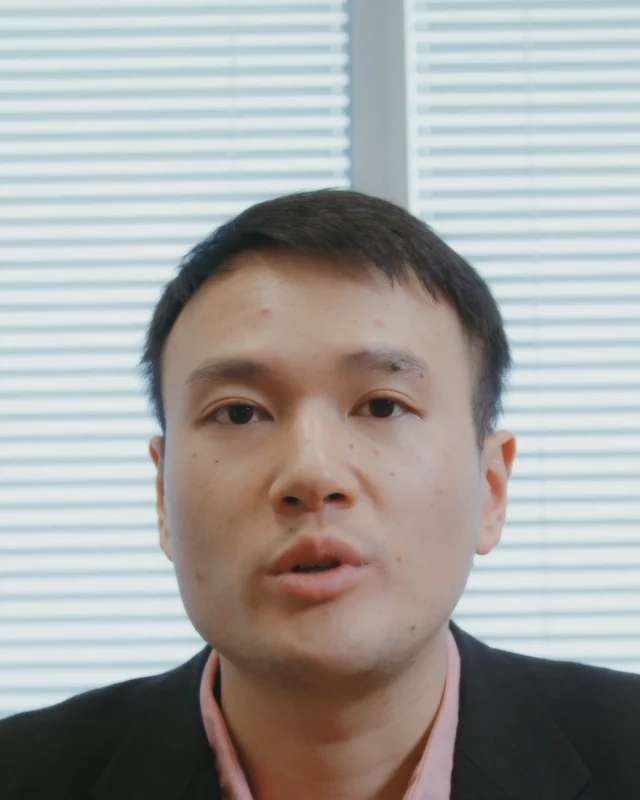
Eye Contact turns your gaze toward the lens while you read, and Beauty gently softens the picture. Both run on your Mac as the Nextly Camera, ready for any meeting app.
 Reading Notes
 Nextly Camera
Yes. Nextly is free while we grow. If we add paid options later, we’ll announce them well in advance.
Yes. Nextly is built natively for macOS, with global shortcuts and its own virtual camera.
Gemini, Claude, OpenAI, Groq, DeepSeek, Kimi, OpenRouter, local models via Ollama, or your own endpoint. For speech-to-text: Grok, Deepgram, Groq, OpenAI Whisper, Gemini, Azure Speech, Google Cloud and more.
No. Nextly runs on your Mac and listens to meeting audio there. Nothing is added to the call’s participant list.