Built For Live Meetings
Everything on this page is in the Nextly Mac app today.
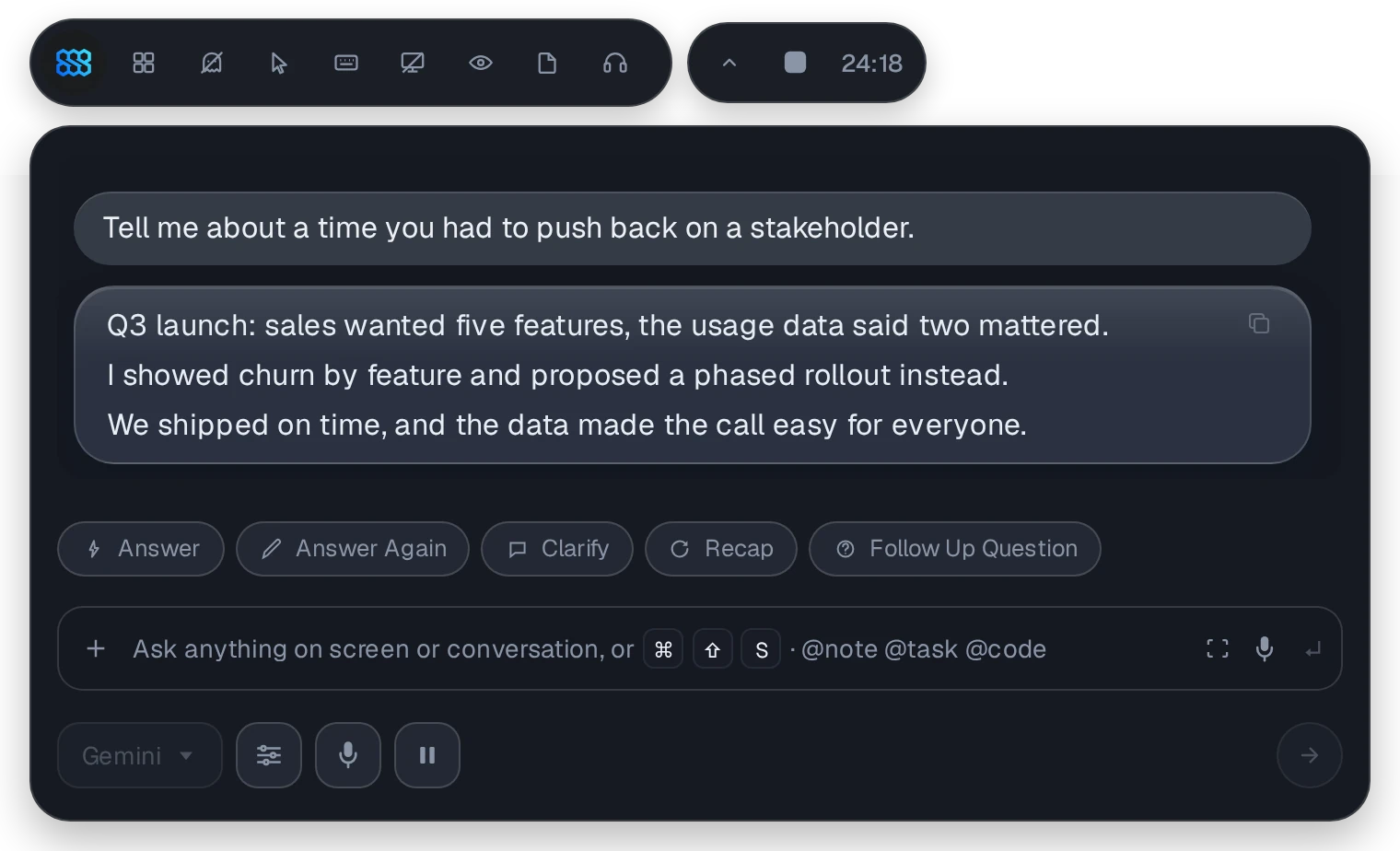
Know What To Say Next
A three-line cue you can glance at and say, built from the conversation, your prompt and your files.
- OFF, AUTO or MANUAL session states.
- Pause, resume, copy or regenerate a reply; Answer Again uses your Fallback model.
- Humanize Response rewrites a cue to sound more natural.
- Adjustable text size for the cue and transcripts.
Answers Rooted In Your Story
Turn any mode into Interview mode. Point it at your résumé and target role, then tune how it answers.
- Emphasis: standard or technical.
- Answer length and natural pauses.
- Candidate and target-role sources from your files.
- Pre-approved answers to common questions replay consistently.
Your Files, Ready Mid-Sentence
Keep files per mode. Nextly reads text, scans and visuals, deciding on your Mac what to send, with optional on-device OCR.
- Per-mode files and folders.
- Local first: Local Only mode never escalates; optional cloud escalation never sees raw files.
- Optional downloads: PaddleOCR-VL parser and Qwen3-VL visual reasoning on Apple Silicon.
A PDF That Keeps Up
Search privately and get page suggestions from the conversation. Your view never jumps; you choose when to open it.
- Private search with matching-page navigation.
- Conversation suggestions show the page and an excerpt.
- Zoom and page controls; scanned PDFs still navigate.
Your Screen, Not Theirs
Hide Nextly from supported screen shares and recordings, and choose how it appears on your own Mac.
- Visual Stealth for the panel and viewers.
- Hide Pointer and Hide Keyboard shortcuts.
- Process Disguise: appear as Terminal, System Settings or Activity Monitor in the Dock and menus.
- Device Stealth controls Nextly-generated keyboard and mouse automation.
Eye Contact While You Read
A virtual camera for any meeting app. Your gaze meets the lens as you read, and Beauty softens the picture.
- Eye Contact strength, auto-adjust while reading, screen-position calibration and lens reference.
- Beauty with adjustable strength; passthrough for supported OBSBOT cameras.
- Processing stays on this Mac.
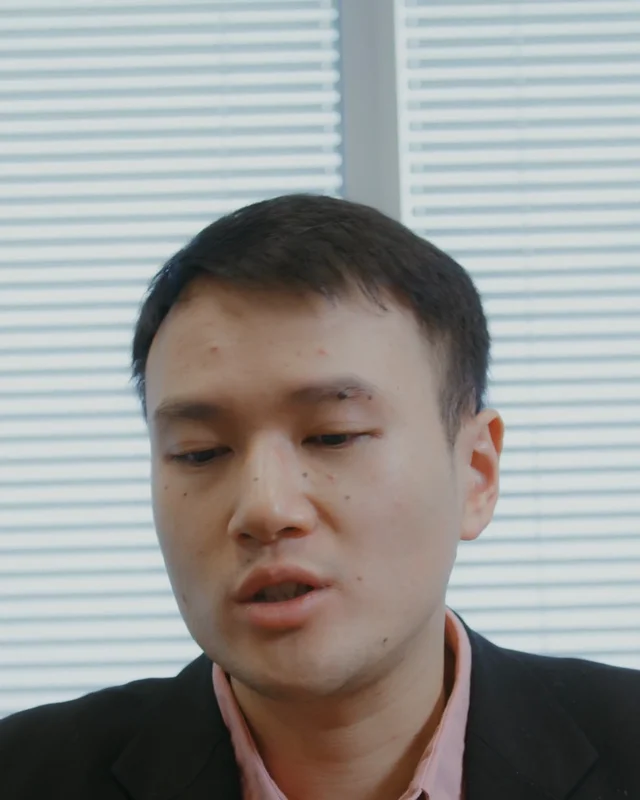 Reading Notes
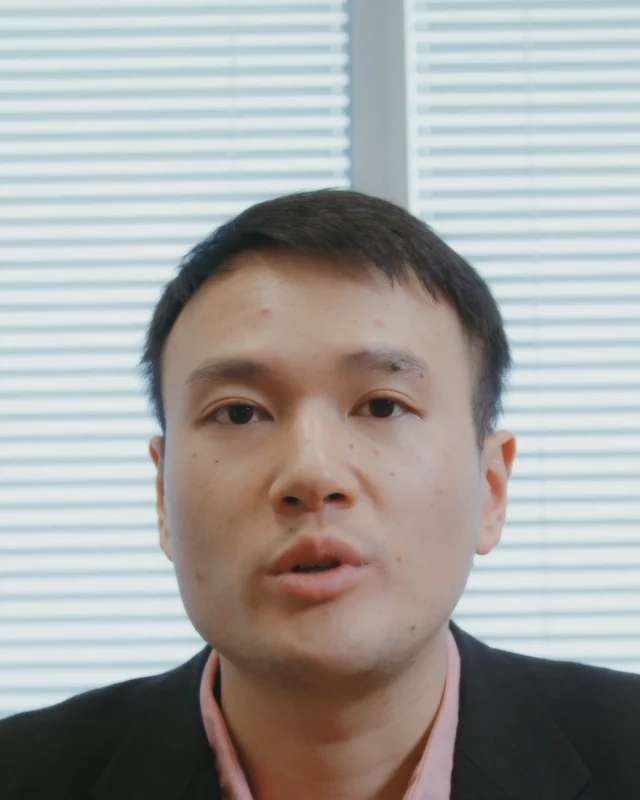 Nextly Camera
A Private Coach In Your Ear
Hear suggested answers privately on your chosen device. It stays quiet while you speak.
- Choose a provider, voice, language and speed.
- Custom voices you are authorised to use.
- Toggle instantly with ⇧⌘J.
Typed Like A Human, Not Pasted
Copy, click a field, press ⌥⌘V. Nextly types it at a human pace, with separate speeds for text and code.
- Text and code WPM set separately.
- Pauses after words, commas, sentences and new lines, plus subtle variation.
- Stop instantly with ⇧⌘..
Bring Your Own Models
Pick your provider and a Fallback for stalls. Your keys stay in the macOS Keychain.
Answers
Speech-To-Text
Every Shortcut, Your Way
Remap any shortcut in Settings. Nextly blocks clashing shortcuts instead of silently swapping them.
| Action | Default | What It Does |
|---|---|---|
| Start Meeting | ⇧⌘N | Starts a meeting with the popup, even if Nextly is quit. |
| Answer | ⌘A | Answer the current question now. |
| Answer Again | ⇧⌘1 | Answer again with the Fallback model. |
| Clarify · Recap · Follow Up | ⌘2 ⌘3 ⌘4 | Clarifying question, short recap, next question. |
| Hide / Show Panel | ⌘H | Hide or restore the panel and viewers. |
| Screenshot · Selective | ⌘S ⇧⌘S | Attach the whole screen or a dragged region. |
| Ask From Screenshot | ⇧⌘A | Capture now, or explain the open or attached file. |
| Attach File | ⌘O | Choose a file to attach. |
| Clipboard To Type · Stop | ⌥⌘V ⇧⌘. | Type the clipboard at a human pace, or stop. |
| Hide Pointer · Hide Keyboard | ⇧⌘H ⇧⌘K | Keep pointer and key events private during a share. |
| Voice Assistant | ⇧⌘J | Turn private voice on, or silence it. |
| Move Panel | ⌘←↑↓→ | Nudge the meeting panel. |
| Stop Session | ⌘. | Turn the current session off. |